
How to add an alert banner to SharePoint Online
An alert banner is a strip or box at the top of a SharePoint page that tells people something important as soon as they arrive. This guide shows how to add one to a modern SharePoint Online page with Alerts Fusion, show it only to the right people and make it disappear on a set date, with no code.
Why a plain page is not enough
On a standard modern page you can type an announcement into a text web part or publish a news post. Those work for news, but they stay on the page until someone removes them, they look the same to everyone, and they are easy to scroll past. A banner built with Alerts Fusion can open by itself when the page loads, appear only for chosen groups, close after a few seconds, stop appearing once each person has seen it enough times, and switch itself off when the scheduled period ends.
What you need
- Alerts Fusion installed in your tenant. The Microsoft AppSource version is free for 7 days on one site.
- Permission to edit the page where the banner will appear.
- Your message, and the date range when it should show.
Add an alert banner step by step
- Install Alerts Fusion. A SharePoint admin adds Alerts Fusion to the tenant from Microsoft AppSource. The first 7 days are free on one site.
- Add the web part to the page. Edit the modern page, select the + sign where the banner should go and add the Alerts Fusion web part.
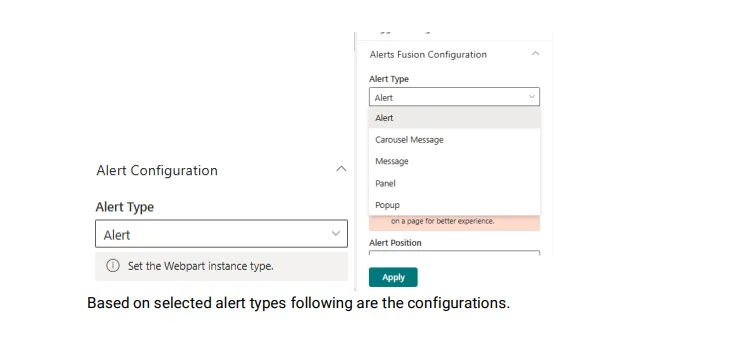
- Choose the banner format. In Alert configuration, pick Message or Carousel Message for a bar across the page, or Alert for a banner that can be scheduled and can include an action button.
- Write the banner content. Type the message in the rich text editor, or pull it from a page URL or a SharePoint list so it can be updated without editing the page.
- Make it open by itself. Set the open event to Auto Open and hide the trigger, then choose the position. Message bars can sit at the top or bottom of the page.
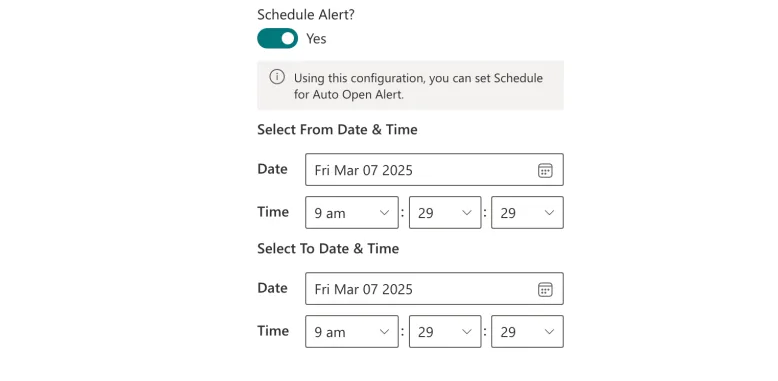
- Set the timing. For the Alert type, turn on Schedule Alert and choose the date and time range. Add auto close if you want, and set the maximum number of automatic shows per person.
- Choose the audience. Leave targeting off to show everyone, or turn on audience targeting and pick SharePoint groups or individual users.
- Republish the page. Republish the page. The banner appears for your audience during the scheduled period and stops on its own.
Which format makes the best banner?
| Goal | Use this format | Why |
|---|---|---|
| A notice across the top of the page | Message | A bar at the top or bottom of the page with Info, Warning, Error and other types |
| Several short updates in one place | Carousel message | Sliding text with your own bar and text colours |
| A banner with a button to a page or policy | Alert | Supports an action button, a schedule and a per-person show limit |
| A message nobody can miss | Popup | A focused window with an optional overlay |
Tips for banners people actually read
- One automatic banner per page. Alerts Fusion recommends only one Auto Open alert on a page, so messages do not compete.
- Keep it short. Put the headline in the banner and link to the detail with an action button.
- Cap repeats. Set the maximum automatic shows so regular visitors are not shown the same banner every time.
- Manage it centrally. Use a SharePoint list as the content source so you can update the message without editing the page.
- Target where it matters. A site-wide banner for everyone and a second Alerts Fusion web part for one department can sit on the same page.
Need a full-screen popup with a call to action instead? Power Popups for SharePoint is built for that.
Questions about SharePoint banners
Do I need to write code to add a banner?
No. Everything is set in the Alerts Fusion property pane. HTML is optional if you want full control of the design.
Can the banner stop showing on its own?
Yes. For the Alert type, set a schedule with an end date and time, and a maximum number of automatic shows per person. You can also close it automatically after a number of seconds.
Can the banner link to another page?
Yes. The Alert type can show an action button that links to any web address.
Try it on your own intranet. Alerts Fusion is free for 7 days on one site. Install it from Microsoft AppSource or book a free demo.