
How to add a message bar to SharePoint pages
A message bar is a slim coloured strip that tells people about a status, such as planned maintenance, an outage or a completed change. Alerts Fusion adds six types of message bar to modern SharePoint pages, with icons, multi-line text and automatic dismissal.
The six message bar types
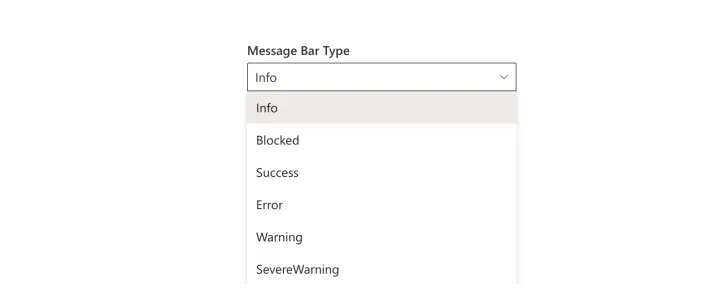
Alerts Fusion uses the familiar Microsoft 365 message bar styles, so people recognise them straight away.
| Type | Good for | Example |
|---|---|---|
| Info | General updates | New starters' guide is now on the HR site |
| Success | Changes that are complete | Email migration finished, all mailboxes moved |
| Blocked | Something people cannot use | Expenses system unavailable to new claims |
| Warning | Planned maintenance | Intranet maintenance on Friday from 18:00 to 20:00 |
| Severe warning | Urgent issues needing action | Phishing email circulating, do not open the attachment |
| Error | Live outages | VPN outage, the team is working on a fix |
Add a message bar step by step
- Add the web part. Edit the modern SharePoint page and add the Alerts Fusion web part.
- Choose a bar format. In Alert configuration choose Message for a single notice, or Carousel Message for several short messages that slide across the bar.
- Pick the message bar type. Choose Info, Success, Blocked, Warning, Severe Warning or Error, and optionally a different Fluent UI icon.
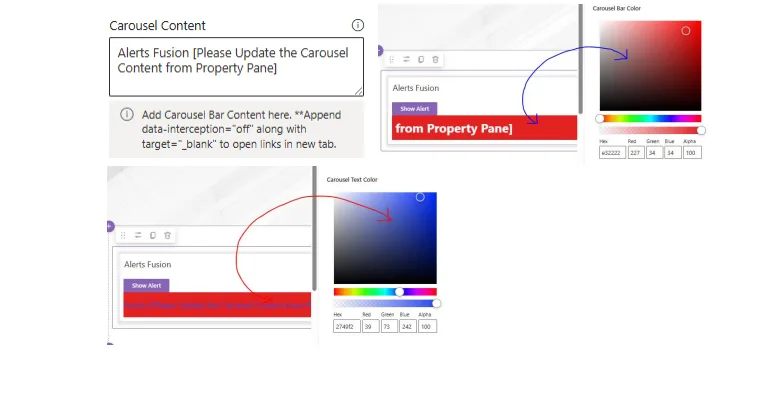
- Write the notice. Type the message or fetch it from SharePoint. For carousels, set the bar colour and text colour.
- Set position and size. Show the bar at the top or bottom of the page or in place of the web part, and turn on multi-line or the expand button for longer text.
- Decide how it opens and closes. Open the bar automatically or on click, and turn on auto dismiss with the number of seconds before it closes.
- Republish. Republish the page so everyone, or only your targeted audience, sees the notice.

Message bar or carousel?
Use a Message bar for one clear notice. Use a Carousel Message bar when you have several short updates: the text slides across the bar, and you choose the bar and text colours to match your intranet.
Tips
- Match the type to the urgency, so people learn that red means act now.
- Turn on Show multi-line message bar or the expand button when the notice is longer than one line.
- Use auto dismiss for routine updates and leave urgent notices open.
- Pair a warning bar with a scheduled announcement for maintenance windows.
Message bar questions
Can I change the message bar icon?
Yes. The icon picker lets you choose any Fluent UI icon instead of the default icon for the bar type, or clear the selection.
Where can the message bar appear?
At the top of the page, at the bottom of the page, or in place of the web part.
Can the message bar close by itself?
Yes. Turn on auto dismiss and set the number of seconds before the bar closes.
Try it on your own intranet. Alerts Fusion is free for 7 days on one site. Install it from Microsoft AppSource or book a free demo.