
Trigger configuration
The trigger is what people click to open an alert. Alerts Fusion offers a button, a link or an image, and the trigger can be hidden when the alert opens automatically.
Hide alert trigger
Shows or hides the trigger on the page. This option is available only when the alert's open event is set to Auto Open, so people still see the alert without needing a button.

Alert trigger types
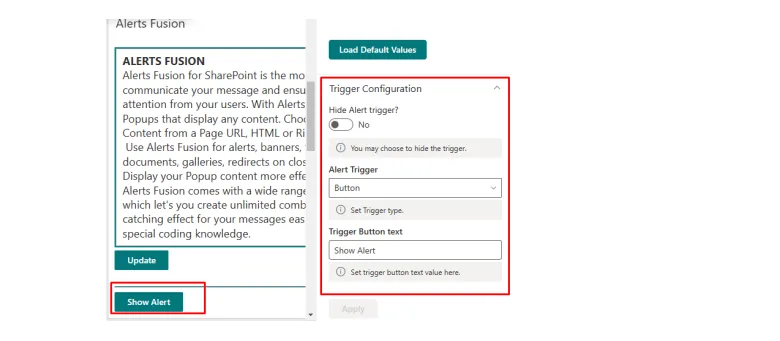
Choose the type of trigger shown on the page. There are three: Button, Link and Image.
Button
A button appears on the page. Change its text in the property pane.
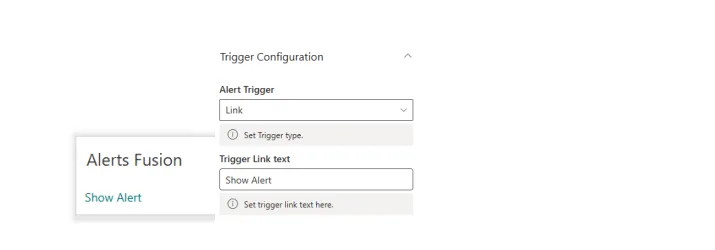
Link
A text link appears on the page. Change the link text in the property pane.
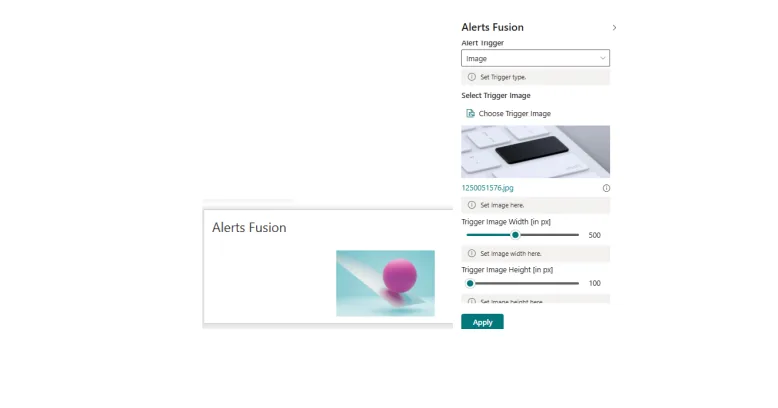
Image
An image appears on the page and opens the alert when clicked. Choose the picture from Recent, Stock images, OneDrive, the site, or an external link, and adjust its properties in the property pane.
Next: alert configuration.