
Add Alerts Fusion to a modern SharePoint page
After Alerts Fusion is installed in your tenant, you add it to a page like any other web part and configure it from the property pane.
Add the web part
- Open the modern SharePoint page where you want the alert and select Edit.
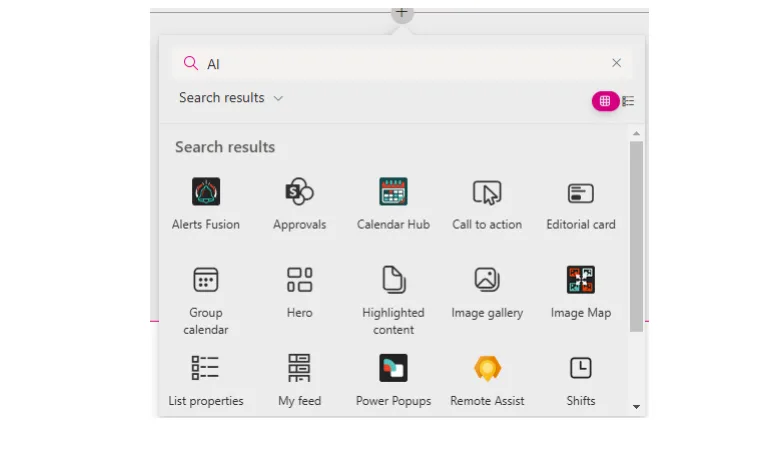
- Hover where you want the web part, select the + sign and choose Alerts Fusion from the web part list.
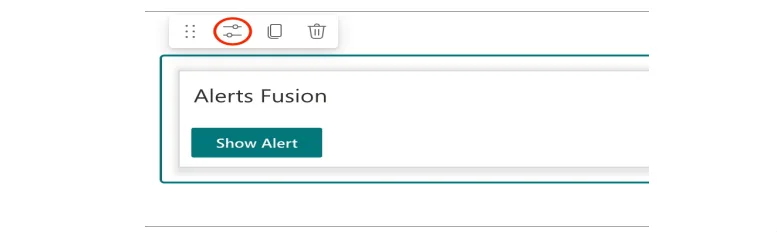
- Select the web part's Properties (edit) icon to open its settings.
The property pane
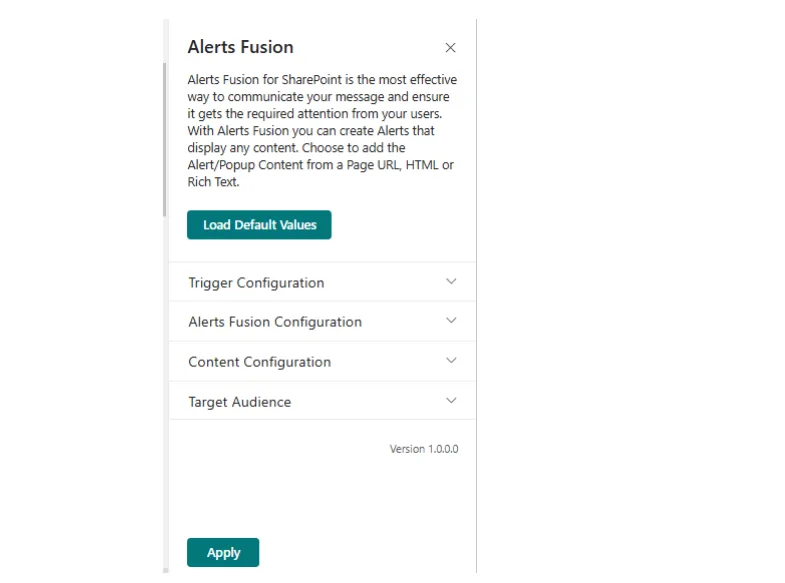
The property pane opens on the right of the browser. This is where you choose the alert type, trigger, content and audience. Each part is explained in Alerts Fusion configuration sections.
When you have finished, republish the page so readers see your alert.